MacKuba

🍎 Kuba Suder's blog on Mac/iOS & web dev

Learn Objective C in 30 minutes

Categories: Cocoa Comments: 36 comments

Recently I started thinking about writing something simple in Objective C – you know, that weird Apple language used for Mac programming… Not that I’m planning to switch from Ruby to ObjC – I rather treat this as a kind of a challenge (“what, I can’t learn this thing? of course I can!” :), besides, there is no language good for everything, and there are some low-level things that you really shouldn’t write in Ruby, like plugins for Finder, Quicklook, etc. Also, I remember reading somewhere that it’s good for a programmer to learn a new language each year – so, two years ago Python, last year Ruby, this year Objective C? :)

I googled for some quick tutorials, read a couple of them, and I realised that this language is really very simple, it just looks complicated because of that syntax and symbols; but once you start translating everything in your head, it all starts looking very familiar. Of course, it’s a different thing to understand what’s going on in someone’s code and to be able to write your own (for that, you also need to know some libraries…); but in this case, it’s pretty easy to go from “OMG WTF dude what’s this??” to a state when you can look at ObjC code and understand it as if it was written in Java or something else.

I made some notes while I was reading the tutorials, and I’m publishing them here so that maybe someone can learn this faster than I did – it’s just a “diff”, so I didn’t describe in detail anything that is obvious for someone who knows C, Java, Ruby, etc. You can treat this as a kind of poor man’s tutorial… Although I’m warning you that I spent a total of about one day looking at ObjC code, so some of what I’ve written here may not be completely correct, or may even be completely wrong. This is all based on what I read, not on my own experiences (which I have almost none). This product is provided without any warranty :)
Read more »

"ls" on Mac and extended file attributes

Categories: Mac Comments: 10 comments

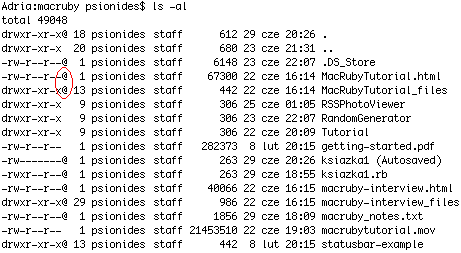
Yesterday while I was working in the terminal I noticed something unusual about the results of “ls -al” command:

Results from 'ls -al' command including at symbols (-rw-r--r--@)

What are those symbols? I googled for “mac ls at sign”, but most of the results told me that “@” means “symbolic link”. Well, all those files can’t be symbolic links, I’m pretty sure of that. So what are they?

Read more »

To Cocoa or not to Cocoa, that is the question...

Categories: Cocoa, Python, Ruby/Rails Comments: 0 comments

It seems that starting a blog was not the only stupid idea I had recently. I’m having more of those… For example, now I’m thinking about learning some Cocoa and writing some applications for the Mac :) I’ve been planning for some time to write something in Qt when I used Linux, but now it seems that although Qt has the advantage of being multi-platform, so I could write something that could be used on Windows, Linux and Mac, the disadvantage is that only a subset of Cocoa widgets are available in Qt; I couldn’t use some of the things I saw in native Mac applications, and because of that, my applications would be less “macish”…

Read more »

Bandwidth limiting in MacOSX

Categories: Mac Comments: 0 comments

I played a bit with bandwidth limiting tools in MacOSX recently. The reason was that I was uploading huge files to DivShare, and my Firefox took all the available upload bandwidth; and since upload bandwidth happens to be quite useful even when you’re not really uploading anything, everyone at home (including me) had serious problems with using the web at the time. So I thought I could try to force Firefox somehow to limit the maximum upload speed.

I’ve found a plugin which does exactly that, but it was only for Windows… (a plugin for a cross-platform browser which is not cross-platform? come on…). So I started looking for some system-wide solution. I found two pages that explained how to do this – it turns out it’s pretty easy, at least for someone that’s not afraid of the command line.

Everything is done using the ipfw command (IP FireWall?…). First you have to create one or more “pipes” with a constant share of bandwidth assigned:

sudo ipfw pipe <pipe_nr> config bw <amount>kbit/s

Read more »